
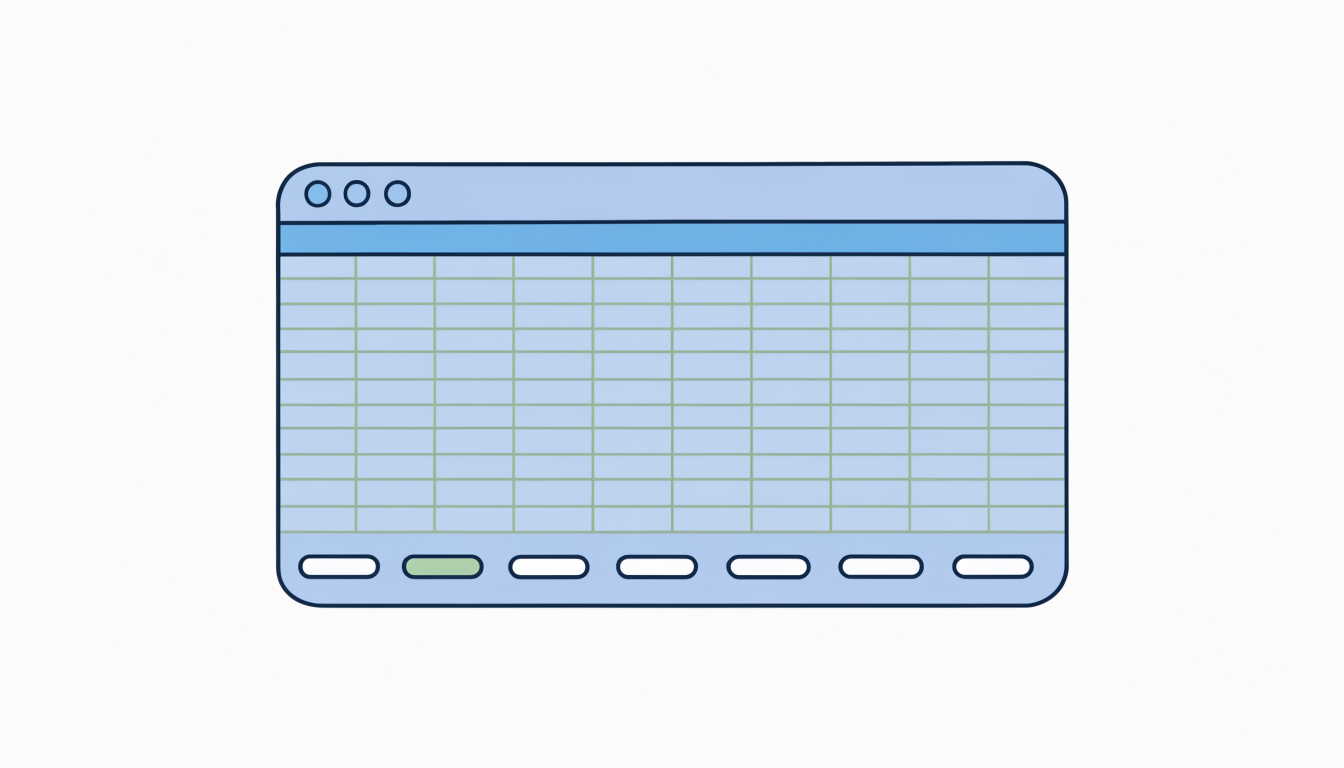
Right-click the sheet tab at the bottom of the window, pick Delete, and if Excel asks you to confirm, click Delete again. For one sheet, that's it. Further down you'll find the ribbon and keyboard routes, how to delete several sheets in one go, what to check first so your formulas don't break, and why Delete is sometimes grayed out.
The quickest way is to right-click the sheet tab
Microsoft says that in Excel you can easily insert, rename, and delete worksheets in your workbook. Deleting one takes three steps:
- Right-click the sheet tab at the bottom of the window.
- Choose Delete.
- Click Delete again if Excel asks you to confirm.
Watch which tab you right-click, because that's the sheet Excel deletes, even if you're looking at a different one. So read the tab name before you click. Save the file before you start, too, and treat the deletion as final. Picked the wrong sheet? Close the file without saving, reopen it, and the sheet is back. I wouldn't count on Ctrl+Z here.
Delete a sheet from the Home tab
Prefer menus, or is your right-click menu crowded? Select the sheet and go to Home > Delete (it's in the Cells group) > Delete Sheet. Microsoft lists this route right next to the right-click one.
The button is a bit fiddly. If you click Delete itself, Excel deletes the selected cells and leaves the sheet where it is. You want the small arrow under Delete, and then Delete Sheet.
Delete a sheet with the keyboard
On Windows, press Alt, then H, then D, then S, one key at a time (not all together). They're the ribbon key tips for the same Home > Delete > Delete Sheet path, so they only work while those little ribbon letters are showing on screen. There's a longer list of Excel keyboard shortcuts worth learning if you want more like this.
To reach the right tab without the mouse, use Ctrl+Page Up and Ctrl+Page Down to move between sheets, then delete it. If you'd like to get quicker at that, try the moving and selecting exercises.
Delete a sheet on a Mac or in Excel for the web
On a Mac, it works the same way. Right-click the tab (or hold Control and click it if you don't have a right mouse button), choose Delete, and confirm. The Home tab route is there too: the arrow under Delete, then Delete Sheet. The Alt key tips from Windows don't exist on a Mac, so stick with the mouse or the ribbon.
In Excel for the web, right-click the tab at the bottom and choose Delete. Excel asks you to confirm before the sheet goes. The difference is saving. The web version saves as you work, so there's no "close without saving" escape hatch. If you delete the wrong sheet there, open File > Info > Version History and restore a version from before the deletion. It's slower than reopening a file, but it gets the sheet back.
Delete several sheets at once
First, group the sheets. For a run of them, click the first tab, hold Shift and click the last one. If they aren't side by side, hold Ctrl and click each one instead. Then right-click any of the selected tabs and choose Delete. You'll see Group in the title bar while sheets are grouped.
Changed your mind? Be careful, because anything you type while the sheets are still grouped goes onto every one of them. Right-click a tab and choose Ungroup Sheets before you carry on. You also can't delete every sheet (a workbook has to keep at least one), so if you really want to clear everything out, add a blank sheet first.
Check for formulas that use the sheet before you delete it
Say your Summary sheet has =SUM(Sales!B2:B20). Delete the Sales sheet and that formula turns into =SUM(#REF!), and every total that builds on it fails as well. This is an example. It's exactly how it goes wrong, though.
To check before you delete, go to any other sheet and press Ctrl+F. Click Options, set Within to Workbook and Look in to Formulas, and search for the sheet name with an exclamation mark after it: Sales!. Each hit is a formula that will break. You can point those formulas at something else, or copy them and paste the results as values, and then delete.
Charts and drop-down lists can catch you out too, because their data or list source might be on the sheet you're removing. If you'd like to try this on something you don't mind breaking, use a copy from the free Excel practice files.
Why Excel won't let you delete a sheet
Usually it's because the workbook structure is protected. With that on, Delete, Insert, Rename, Move, Copy, Hide and Unhide on the tab menu are all unavailable. Microsoft explains that locking the workbook structure prevents other users from adding, moving, deleting, hiding, and renaming worksheets.
To switch it off, go to Review > Protect Workbook, enter the password and click OK, and then delete the sheet. No password? Ask whoever set it. If you want the bigger picture, see how sheet and cell protection works.
A few other things can block it:
- It's the last sheet left in the workbook.
- The sheet is hidden. Right-click any tab, choose Unhide and try again.
- The file is open read-only or shared, so save a copy of your own first.
Hide the sheet if you might need it later
Not sure you're done with a sheet? Hiding it is often the better move. Right-click the tab and choose Hide. The tab disappears, but the data stays in the file, and every formula that points to it keeps working. That makes it a good fit for lookup tables, old months and helper columns that the rest of the workbook still reads from.
To bring it back, right-click any tab, choose Unhide, pick the sheet from the list and click OK. Hidden isn't private, though. Anyone with the file can unhide it in a few clicks, so don't hide a sheet to keep salaries or customer data away from people. Delete it, or keep that data in a separate file.
A third option sits halfway between the two. Right-click the tab, choose Move or Copy, pick (new book) and tick Create a copy. Now the sheet lives in its own file as a backup, and you can delete it from the original without a second thought.
Delete many sheets with a short macro
If you've got dozens of tabs, a VBA macro is quicker. By default, Worksheet.Delete displays a dialog box that prompts you to confirm each deletion. The one below deletes every sheet whose name starts with "Old":
Application.DisplayAlerts = False
For i = ThisWorkbook.Worksheets.Count To 1 Step -1
    If Left(ThisWorkbook.Worksheets(i).Name, 3) = "Old" Then ThisWorkbook.Worksheets(i).Delete
Next i
Application.DisplayAlerts = True
It counts backwards so that deleting a sheet doesn't shift the ones it hasn't checked yet. To skip the prompts, set Application.DisplayAlerts to False before the loop, like above. Microsoft notes that Excel sets it back to True when the code is finished, unless you are running cross-process code. I'd still switch it back yourself in the macro, and only run it on a saved copy, because once the prompts are off there's nothing to stop a wrong match.
Turn small Excel skills into something you can show
Managing sheets is housekeeping, and it's the formulas on those sheets that employers test. ExcelSavvy has 173 exercises where you type the formula yourself in a real grid and only move on once it works. Everything runs in your browser on Windows, Mac or Chromebook, so you don't install anything, and you can solve your first exercises without an account.
Finish a topic with premium and you can get a verifiable Excel certificate with your name and a link anyone can check. You can add it to a résumé or LinkedIn. It shows what you've completed, but it doesn't promise a job.
FAQ
Can I undo deleting a sheet in Excel?
I wouldn't rely on Ctrl+Z. If you saved before deleting, close the file without saving and reopen it, and the sheet's back. Saving a copy first is the safe habit to get into.
Why is Delete grayed out when I right-click a sheet tab?
Because the workbook structure is protected. To turn that off, go to Review > Protect Workbook and enter the password.
How do I delete multiple sheets in Excel at once?
Group the tabs with Shift-click or Ctrl-click, then right-click one of them and choose Delete. If you keep working afterwards, ungroup them.
Will deleting a sheet break my formulas?
Yes. Any formula that points to it turns into #REF!, so search the workbook formulas for the sheet name followed by ! before you delete.
Can I delete every sheet in a workbook?
No, a workbook needs at least one sheet. Add a new blank one before you delete the last one.
Practice the formulas employers test and earn a verifiable Excel certificate

About the author
Nicolaj, founder of ExcelSavvy
I'm a software developer, and I built ExcelSavvy from scratch, including the spreadsheet itself and the engine that calculates the formulas. To make that work, I had to understand every function down to the details: how VLOOKUP behaves when a code has one space too many, why a date is really a number, and when ROUND gives a different answer than the number format.
Practice what this guide covers
Start with the first exercise in a real grid. Every answer is checked right away.